.png)
Security Settings
Default Security settings are in place.An Administrative level Username and Password will be provided with your LiBRARYSOFTWeB purchase.
See video link below (copy paste the address into your browser or click on the link).
https://www.librarysoft.com/TRAINLW/LiBRARYSOFTWeB_2021_UserGroupsPasswords.mp4
1.To change the User Name and Passwords go to the Administration menu and click on the User List option.
Caution: Always add a new Username and Password for the Administrator level before deleting an existing Admin setting.
1. Click Add, select a User Group.
2.Enter a Username, an User password.
3.Click the Post button to save the change.
Modifying Security Access
To change access to a User Group or to create a new on go to the Administration Menu > User Groups.
Setting Up Loan Types
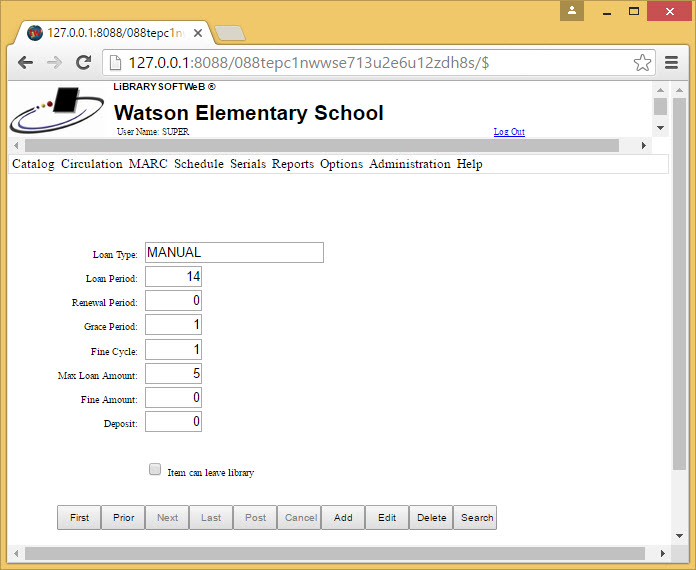
Loan Types define the borrowing periods for an item. Defaults are set up for most items. You can edit and add more Loan Types.
1.Go to the Options icon on the Toolbar (gears icon) select Loan Types.
2.Move through the Loan Types by clicking on Next. If the item does not exist click Add to add the Loan Type.
3.Edit or add the appropriate information.
Setting Up Patron Groups
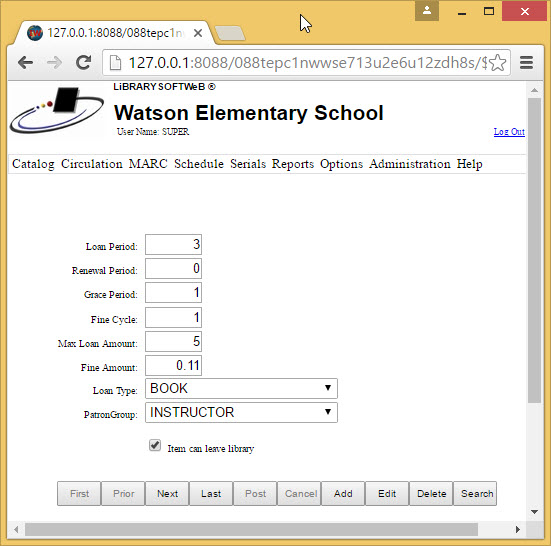
Patron Groups define the borrowing periods for Loan Types for a particular Patron Group.
1.Go to the Options icon on the Toolbar (gears icon) select Loan Groups.
2.To add a new Loan Group click Add, Use the Loan Type Pulldown to select a Loan Type. Use the Patron Group pulldown to select a Patron Group.
3.The rest of the process is the same as per Loan Groups.
Setting Up Loan Groups
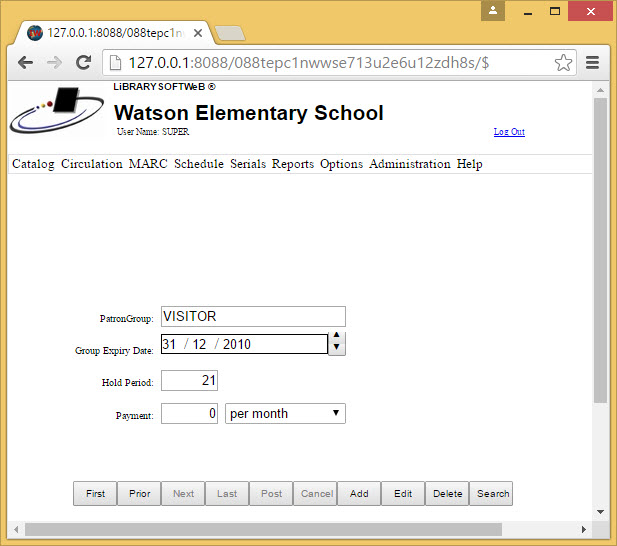
Loan Groups define the Expiry Date of the Group, Hold period, Max of items borrowed. Payment amounts.
1.Go to the Options icon on the Toolbar (gears icon) select Patron Groups.
2.Select a Patron Group by clicking on an item at the left of the screen. If the Group does not exist click Add to add the Patron Group.
3.Edit or add the appropriate information.
4.The Maximum number of all Types value will apply to the total of all items regardless of Loan Type.
5.A Patron Group can be disable preventing the borrowing of items by this Group by clicking the Disable button
.png)
.png)
.png)
.png)
.png)
.png)
.png)
.png)